 2.
カフェアプリ 2
2.
カフェアプリ 2
TailwindCSS
CSSフレームワークとは
CSSフレームワークは、Web開発のスタイルシートのコーディングを簡素化、効率化するためのスタイルシートのセットです。代表的なフレームワークに「Bootstrap」「Tailwind CSS」「Bulma」などがあります。
Tailwind CSSとは
Tailwind CSSは、React、Vue.jsの普及によりシェアが増加しているCSSフレームワークです。Bootstrapより詳細なスタイル設定ができます。
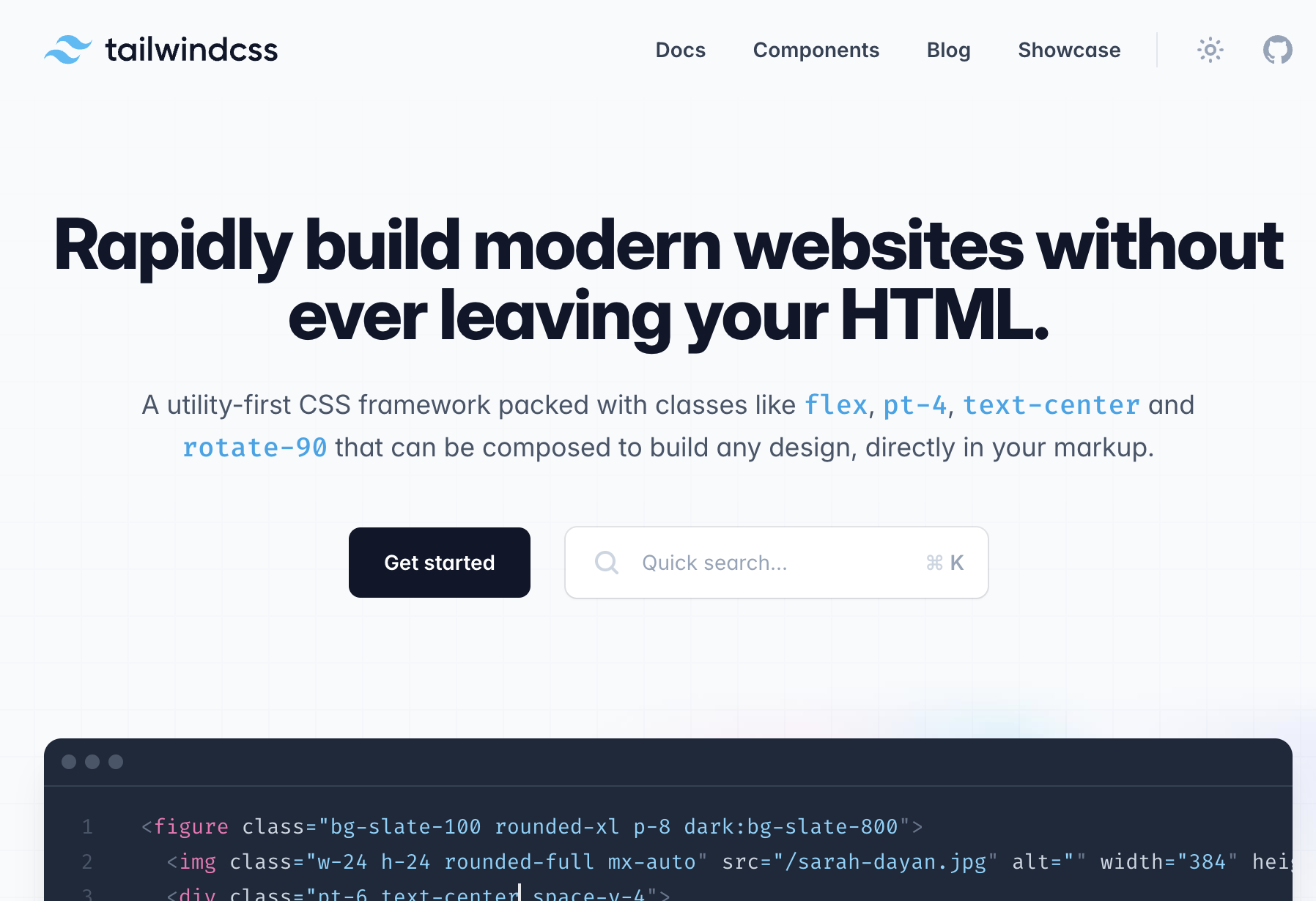
TailwindCSS CDN追加
headタグにTailwindCSSのCDNリンクを追加します。これでネットワーク経由でTailwindCSSを利用できます。
index.html
<head>
    <meta charset="UTF-8">
    <meta name="viewport" content="width=device-width, initial-scale=1.0">
    <title>Document</title>
    <!-- TailwindCSS CDN -->
    <script src="https://cdn.tailwindcss.com"></script>
</head>
グリッド表示
商品をグリッドで表示するように、HTMLにクラス設定します。
index.html
<body class="bg-gray-100">

    <!-- メインコンテンツ -->
    <main class="container mx-auto py-12 px-6">
        <h2 class="text-3xl font-semibold text-gray-800 mb-8 text-center">Our Menu</h2>
        <!-- グリッドで表示 -->
        <div id="menuItems" class="grid grid-cols-1 md:grid-cols-2 lg:grid-cols-3 gap-8">
            <div>
                <img src="images/cappuccino.webp" alt="">
            </div>
        </div>
    </main>

    <script src="js/main.js"></script>
</body>
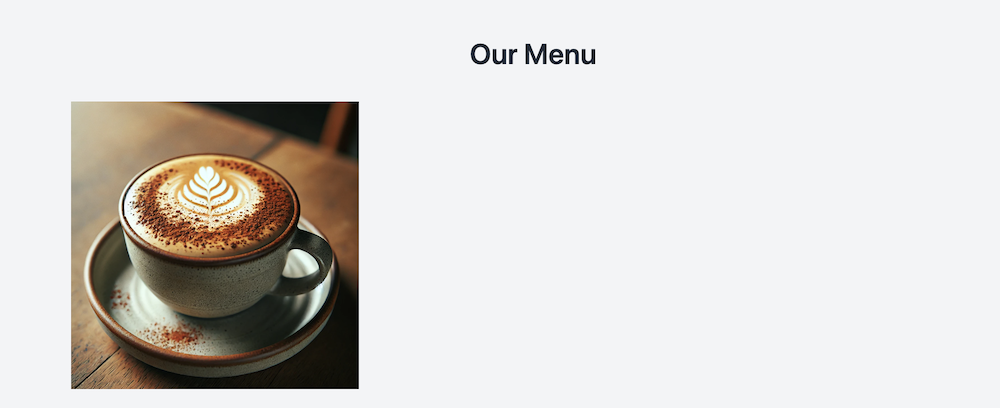
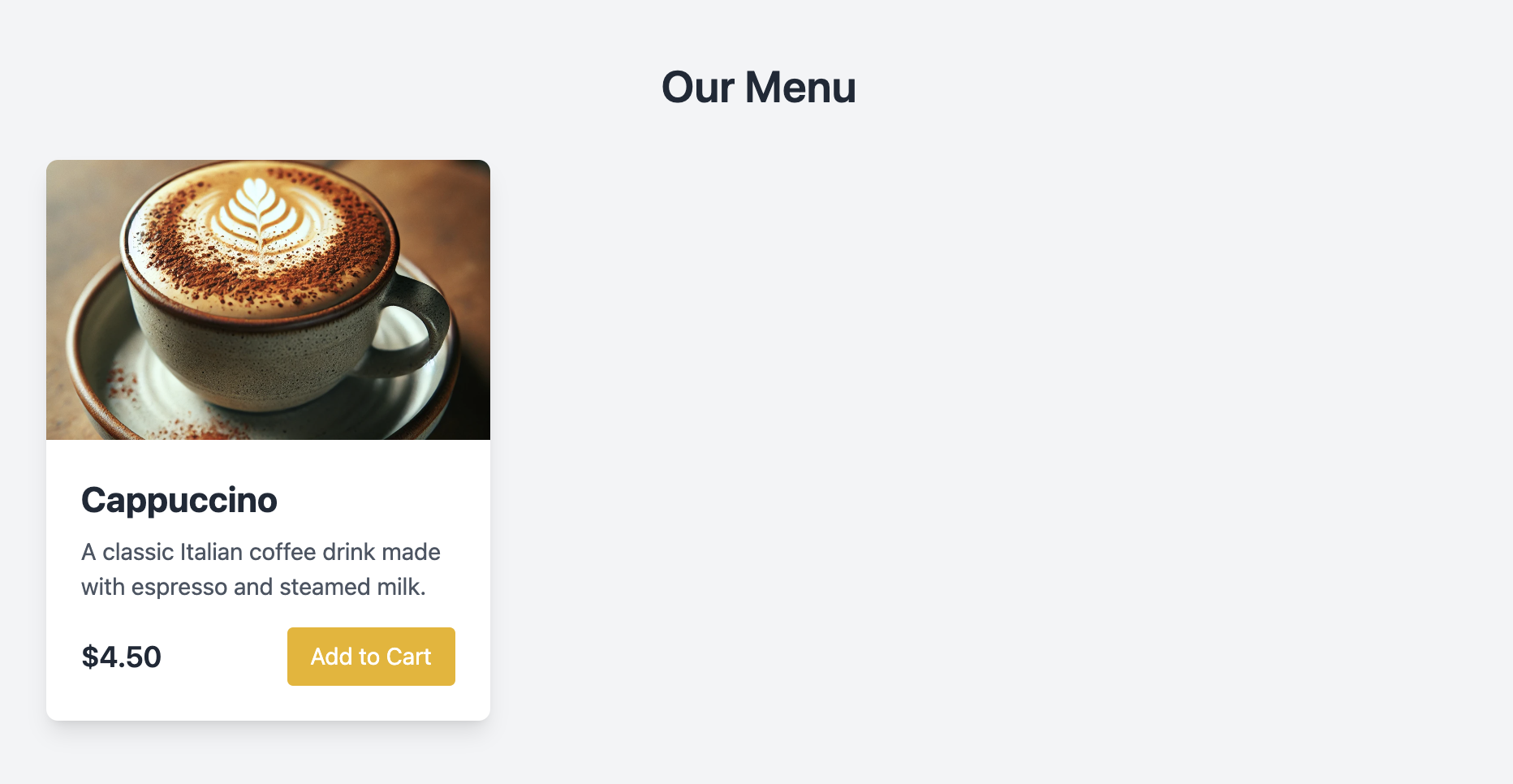
商品情報追加
商品情報を追加します。
index.html
<body class="bg-gray-100">
    <!-- メインコンテンツ -->
    <main class="container mx-auto py-12 px-6">
        <h2 class="text-3xl font-semibold text-gray-800 mb-8 text-center">Our Menu</h2>
        <!-- グリッドで表示 -->
        <div id="menuItems" class="grid grid-cols-1 md:grid-cols-2 lg:grid-cols-3 gap-8">
            <!-- 商品1 -->
            <div class="bg-white rounded-lg shadow-lg overflow-hidden">
                <img src="images/cappuccino.webp" alt="Cappuccino" class="w-full h-48 object-cover">
                <div class="p-6">
                    <h3 class="text-2xl font-bold text-gray-800 mb-2">Cappuccino</h3>
                    <p class="text-gray-600">A classic Italian coffee drink made with espresso and steamed milk.</p>
                    <div class="mt-4 flex justify-between items-center">
                        <span class="text-xl font-semibold text-gray-800">$4.50</span>
                        <button class="addToCartButton bg-yellow-500 text-white px-4 py-2 rounded hover:bg-yellow-600"
                            data-name="Cappuccino" data-price="4.50">Add to Cart</button>
                    </div>
                </div>
            </div>
        </div>
    </main>

    <script src="js/main.js"></script>
</body>
DOMオブジェクト
JavaScriptは、ブラウザを操作できる唯一のプログラム言語です。HTMLのDOMオブジェクトを取得、作成して、複雑なアプリを動作できます。
getElementById()
getElementById() は、IDプロパティを指定してDOMを取得する基本メソッドです。
利用例
つぎのHTMLでは h1タグを「id = title」を指定して、Elementを取得できます。
HTML
<div class="continer">
    <h1 id="title"></h1>
    <p class="content">Hello World</p>
</div>
JavaScript
// 「id = title」のElement取得
const titleElement = document.getElementById("title")
innerText
innerTextプロパティを利用すると、Elementにテキストを入れることができます。
JavaScript
const titleElement = document.getElementById("title")
titleElement.innterText = "サイトタイトル"
JS実行後のHTML表示
<div class="continer">
    <h1 id="title">サイトタイトル</h1>
    <p class="content">Hello World</p>
</div>
ヘッダーセクション
headerタグ追加
headerタグで、サイトタイトルのタグを用意します。
index.html
<body class="bg-gray-100">
    <!-- Header Section -->
    <header class="bg-white shadow-lg">
        <div class="container mx-auto py-6 text-center">
            <h1 id="title" class="text-4xl font-bold text-gray-800"></h1>
            <p id="description" class="text-gray-600 mt-2"></p>
        </div>
    </header>
...

</body>
- h1: サイトタイトル
- p: サイトサブタイトル
サイトタイトル設定
「main.js」で id = title のDOMを取得し、サイトタイトルを設定します。
js/main.js
const siteTitle = "Café Bonjour";
// タブウィンドウのタイトル
document.title = siteTitle;

// main
// id = title の DOM取得
const titleElement = document.getElementById('title');
// サイトタイトル設定
titleElement.innerHTML = siteTitle;
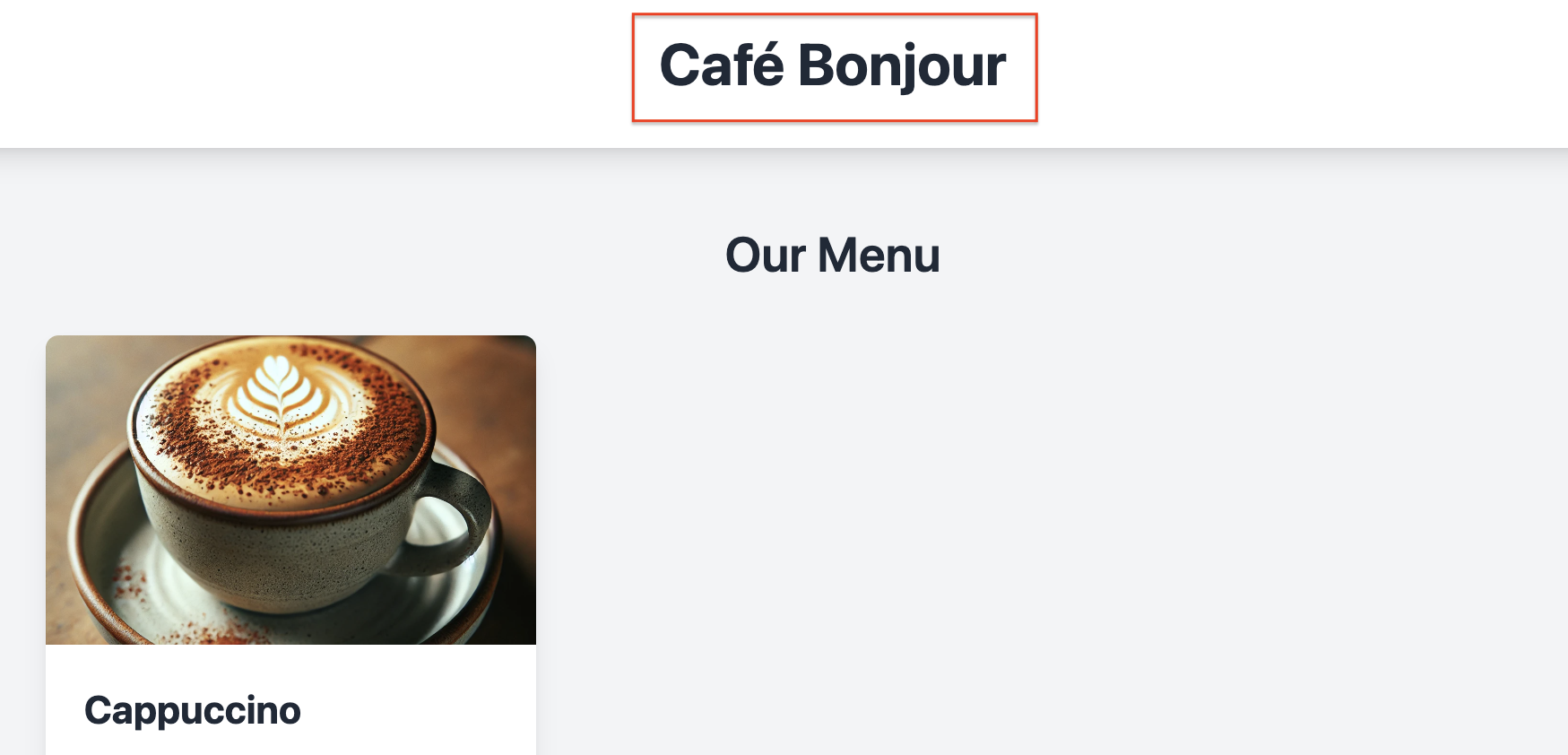
動作確認
h2タグにサイトタイトルが表示されました。
キャッチコピー
id = description のDOMを取得し、キャッチコピーを設定します。
js/main.js
const siteTitle = "Café Bonjour";
// キャッチコピー
const description = "Your cozy corner in the city";

// main
// id = title の DOM取得
const titleElement = document.getElementById('title');
// サイトタイトル設定
titleElement.innerHTML = siteTitle;
document.title = siteTitle;

// header
// id = title の DOM取得
const descriptionElement = document.getElementById('description');
// サブタイトル設定
descriptionElement.innerHTML = description;
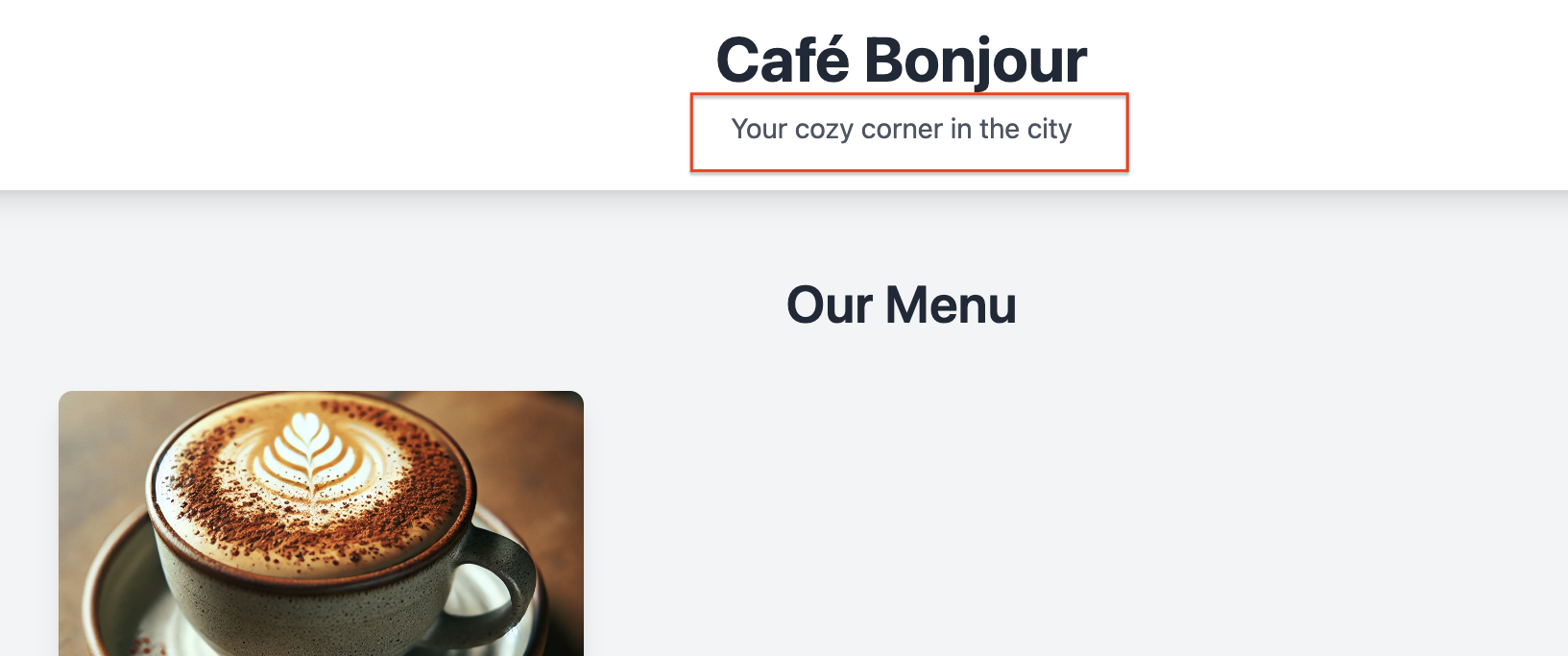
動作確認
ヘッダーセクションにサブタイトルが表示されました。
フッターセクション
footerタグ追加
footerタグで、サイトのフッターセクションを用意します。
<body>
    ...

    <!-- Footer Section -->
    <footer class="bg-gray-800 py-6 mt-12">
        <div class="container mx-auto text-center text-white">
            <p id="copy-right"></p>
        </div>
    </footer>

    <script src="js/main.js"></script>
</body>
コピーライト表示
id = description のDOMを取得し、コピーライトを設定します。
js/main.js
// id = title の DOM取得
const copyRightElement = document.getElementById('copy-right');
// copy right 追加
copyRightElement.innerHTML = copyRight;
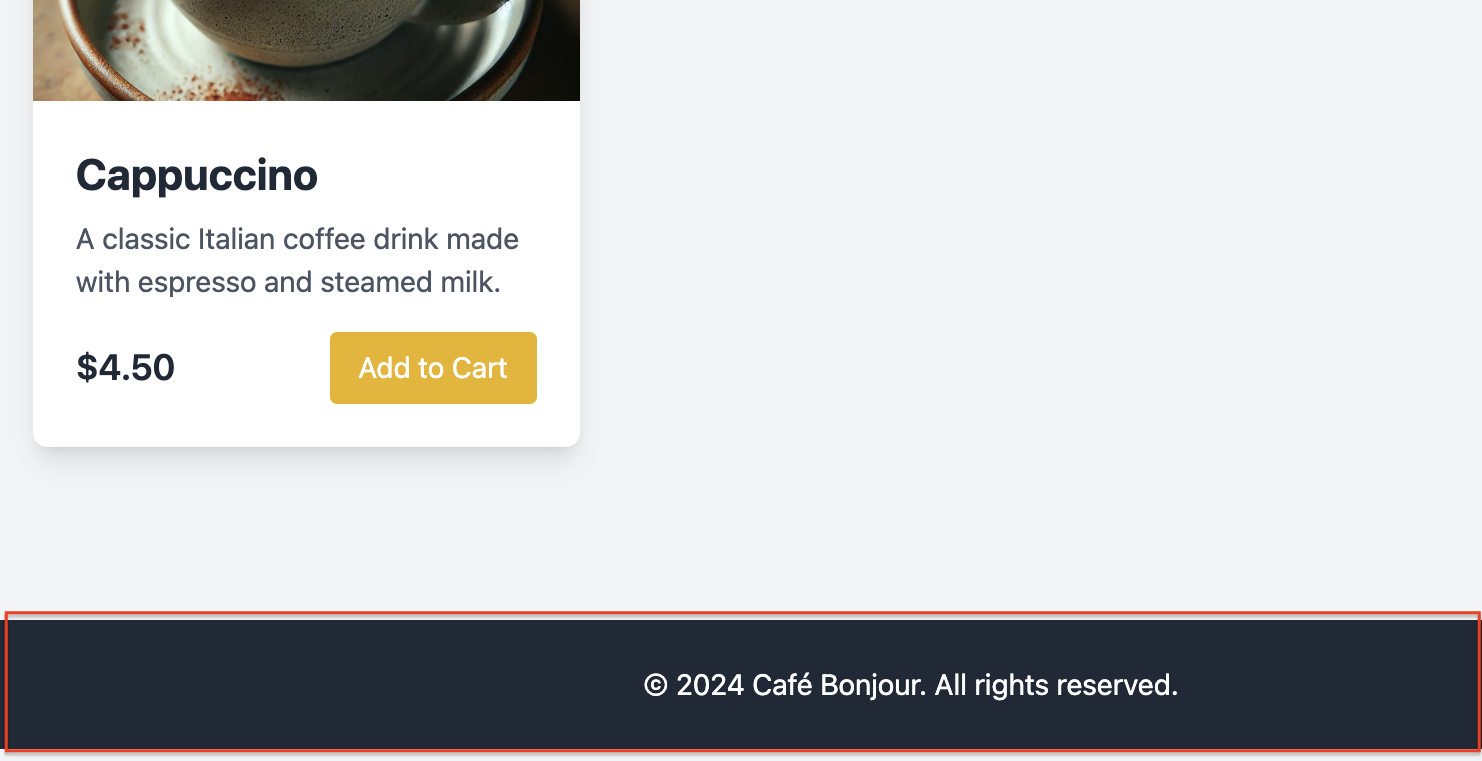
動作確認
フッターセクションにコピーライトが表示されました。
ソース
index.html
<!DOCTYPE html>
<html lang="ja">

<head>
    <meta charset="UTF-8">
    <meta name="viewport" content="width=device-width, initial-scale=1.0">
    <title>Document</title>
    <!-- TailwindCSS CDN -->
    <script src="https://cdn.tailwindcss.com"></script>
</head>

<body class="bg-gray-100">
    <!-- Header Section -->
    <header class="bg-white shadow-lg">
        <div class="container mx-auto py-6 text-center">
            <h1 id="title" class="text-4xl font-bold text-gray-800"></h1>
            <p id="description" class="text-gray-600 mt-2"></p>
        </div>
    </header>

    <!-- メインコンテンツ -->
    <main class="container mx-auto py-12 px-6">
        <h1 class="text-3xl font-semibold text-gray-800 mb-8 text-center">Our Menu</h1>
        <!-- グリッドで表示 -->
        <div id="menuItems" class="grid grid-cols-1 md:grid-cols-2 lg:grid-cols-3 gap-8">
            <!-- 商品1 -->
            <div class="bg-white rounded-lg shadow-lg overflow-hidden">
                <img src="images/cappuccino.webp" alt="Cappuccino" class="w-full h-48 object-cover">
                <div class="p-6">
                    <h3 class="text-2xl font-bold text-gray-800 mb-2">Cappuccino</h3>
                    <p class="text-gray-600">A classic Italian coffee drink made with espresso and steamed milk.</p>
                    <div class="mt-4 flex justify-between items-center">
                        <span class="text-xl font-semibold text-gray-800">$4.50</span>
                        <button class="addToCartButton bg-yellow-500 text-white px-4 py-2 rounded hover:bg-yellow-600"
                            data-name="Cappuccino" data-price="4.50">Add to Cart</button>
                    </div>
                </div>
            </div>
        </div>
    </main>

    <!-- Footer Section -->
    <footer class="bg-gray-800 py-6 mt-12">
        <div class="container mx-auto text-center text-white">
            <p id="copy-right"></p>
        </div>
    </footer>

    <script src="js/main.js"></script>
</body>

</html>
js/main.js
const siteTitle = "Café Bonjour";
const description = "Your cozy corner in the city";
const copyRight = "© 2024 Café Bonjour. All rights reserved.";
// console.log(siteTitle);

// タブウィンドウのタイトル
document.title = siteTitle;

// main
// id = title の DOM取得
const titleElement = document.getElementById('title');
// サイトタイトル設定
titleElement.innerHTML = siteTitle;

// header
// id = title の DOM取得
const descriptionElement = document.getElementById('description');
// サブタイトル設定
descriptionElement.innerHTML = description;

// footer
// id = title の DOM取得
const copyRightElement = document.getElementById('copy-right');
// copy right 追加
copyRightElement.innerHTML = copyRight;